In this article
- 1What You Need Before You Start
- 2Set Up the Document
- 3Layers and Line Colors
- 4Bleed and Safe Area
- 5Keep Art Off the Creases
- 6Color: CMYK, Pantone and RGB
- 7Fonts, Images and Vector Art
- 8Mark Special Finishes Clearly
- 9Barcodes, QR Codes and Required Text
- 10Export the File
- 11The Preflight Checklist
- 12What We Confirm Before Printing
- 13Common Prepress Mistakes
- 14Next Step
To prepare a dieline for prepress and printing, keep the dieline on its own locked layer, extend your artwork 3 to 5 mm past the cut line, keep text and logos inside a safe margin, convert fonts to outlines, use images of about 300 ppi in CMYK or named Pantone colors, and send a print-ready file. We confirm the final dieline with you before printing.
This guide is the practical, step-by-step version. It follows the order you work in, from getting the right dieline to exporting the file, and ends with a checklist you can copy. Bleed gets its own deep guide, what is bleed in packaging, so here we cover it briefly and spend the time on everything else. If you are still learning what a dieline is, start with how to make a paper box template.
Key takeaways
- Start from the right dieline. It must match your box style and your inside size before any artwork goes on it.
- Layers keep the file clean. The dieline sits on its own locked layer so the printer can hide it or use it.
- Bleed and safe area protect the design. Run backgrounds to the bleed line, and keep text and logos inside the safe area and away from folds.
- Fix the technical details early. Outline fonts, use 300 ppi images and work in CMYK or Pantone from the start.
- Check before you send. A short checklist catches nearly every problem that causes delays.
What You Need Before You Start
Artwork goes wrong most often because the file was started before the basics were fixed. Before you open a design program, make sure you have these.
- The inside size of the box, measured and confirmed. See our guide to measuring the dimensions of a box.
- The box style and board. The style decides which panels and flaps exist, and the board can change fold behavior. See how to make a custom box for the order of decisions.
- The finishes. Matte or glossy coating, foil, embossing, spot UV or a window each need setup in the file.
- A dieline for that style and size. Download one from our free dieline templates, or ask us to prepare it.
- Your logo as a vector file if you have one, so it stays sharp at any size.
- Design software that opens PDF or SVG files, such as Illustrator, Affinity Designer, Inkscape, CorelDRAW or Figma.
A dieline from another source may not match our board or our construction. Use one that matches the box we will make, and we confirm the final dieline with you before printing.
Set Up the Document
A few settings at the start save a lot of rework.
- Units. Work in millimeters or inches, and stay with one. Millimeters are easier for small details.
- Scale. Open the dieline at 100 percent. The template files are real size, so never resize them to fit the screen.
- Color mode. Choose CMYK. Print works in CMYK inks and named spot colors, not in the glowing RGB of a screen.
- Artboard. Make it large enough for the dieline plus the bleed, with some empty space around it.
- Raster effects. Set the resolution for shadows, blurs and other effects to 300 ppi, so they are sharp when they print.
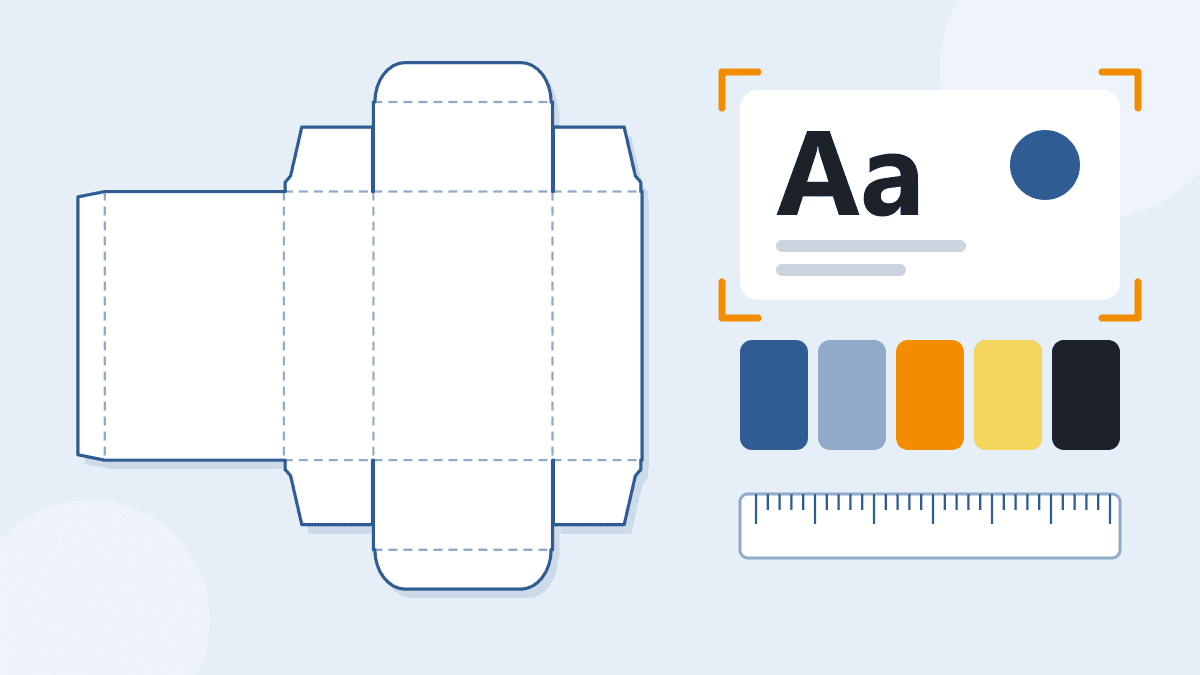
- Import the dieline onto its own layer and lock it before you design.
Layers and Line Colors
Good layers make the file easy for you to edit and easy for the printer to read. Use at least these four.
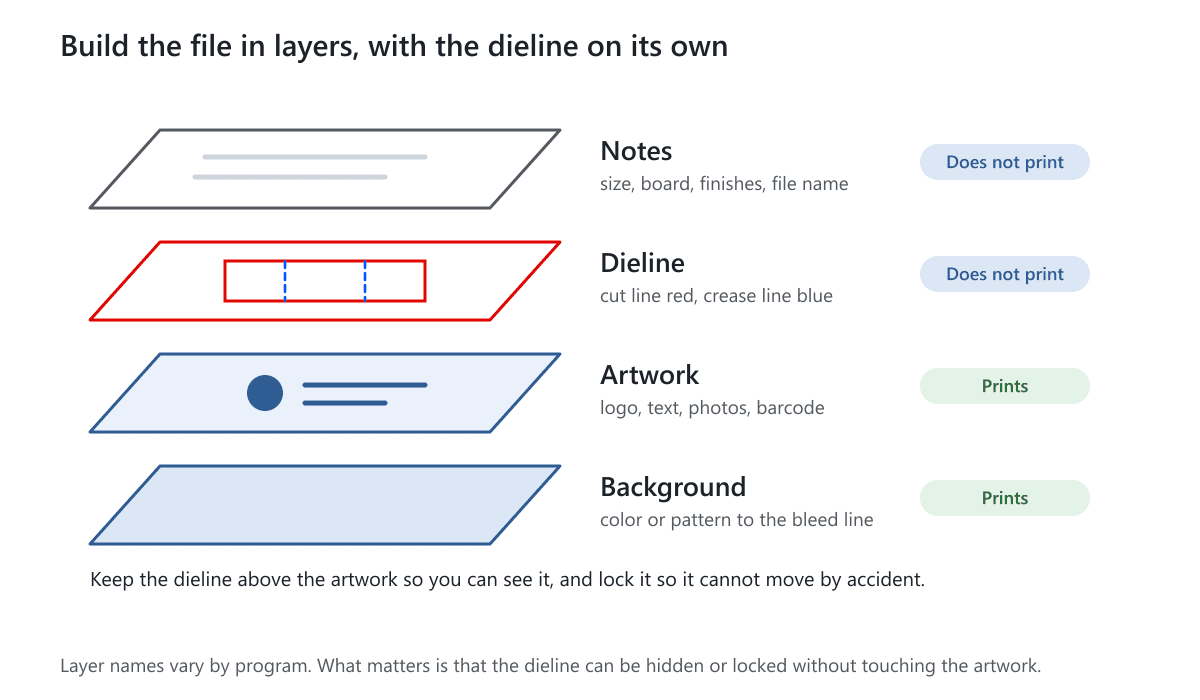
| Layer | What goes on it | Prints? |
|---|---|---|
| Notes | Box size, board, finishes, file name | No |
| Dieline | Cut lines, crease lines and any perforation | No, unless we ask for it as a line |
| Artwork | Logo, text, photos, barcodes | Yes |
| Background | Color or pattern running to the bleed line | Yes |
Our templates use a standard set of line colors. Colors vary between companies, so always read the legend that comes with your dieline.
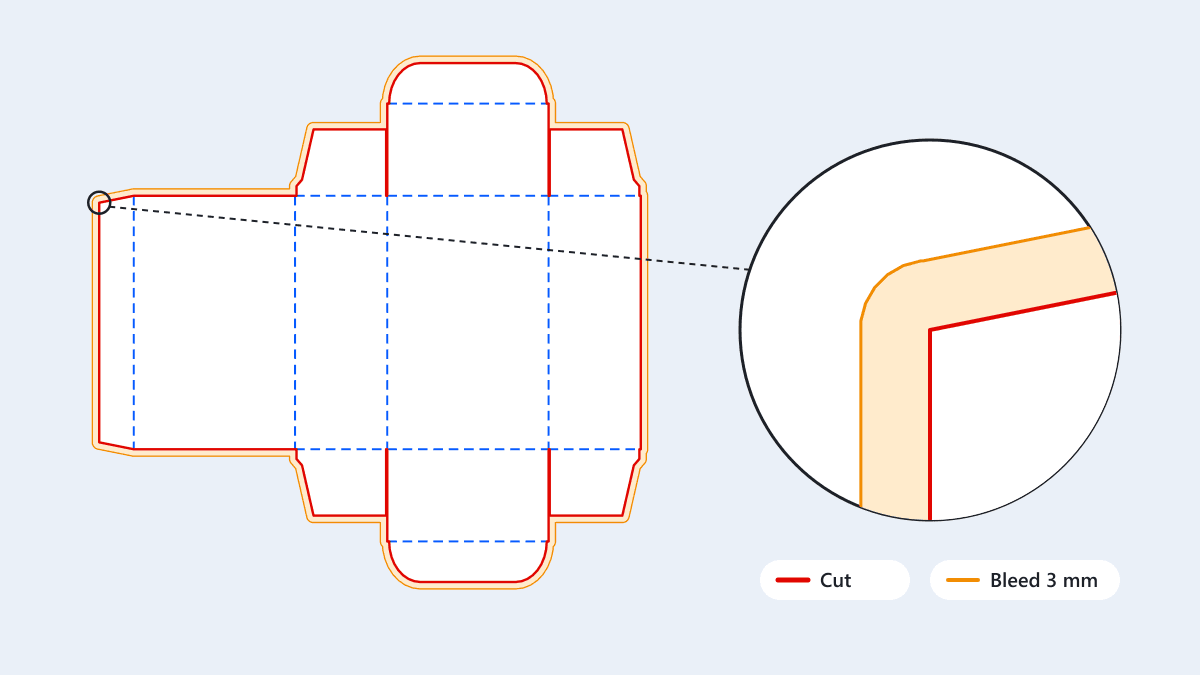
- Cut line: red and solid. This is where the box is cut out.
- Crease line: blue. This is where the board folds.
- Perforation: green, in long dashes. A line of small cuts where a part can tear out or bend easily. Only some styles have one.
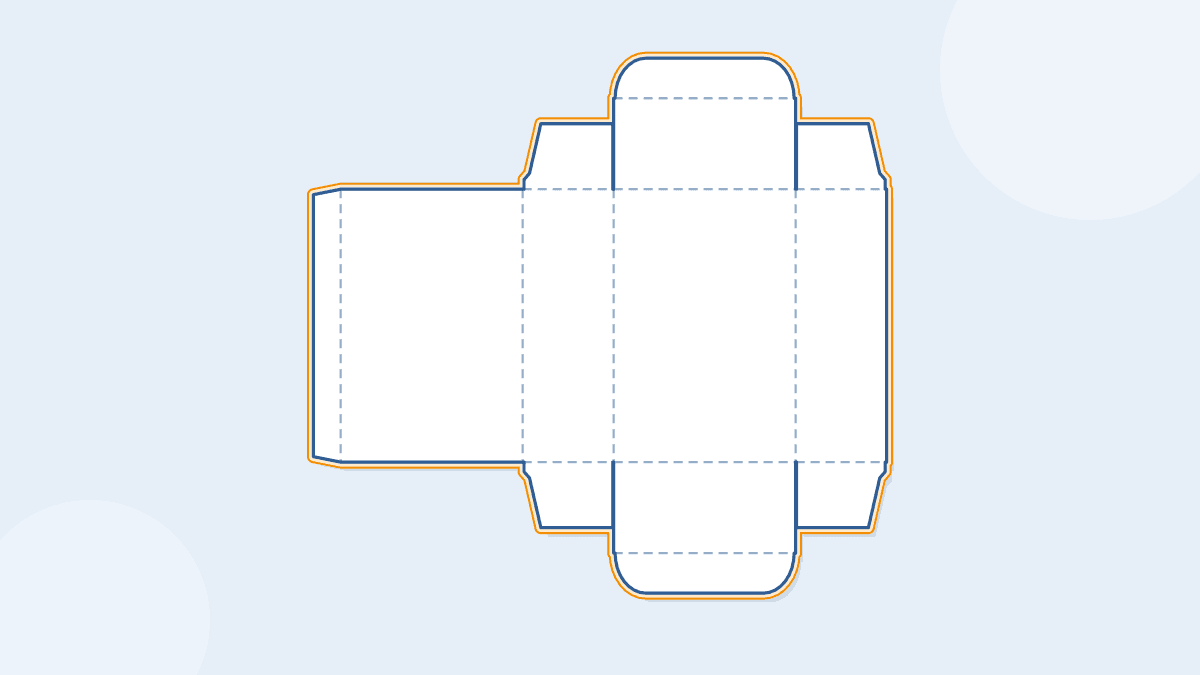
- Bleed line: orange. This only appears when you choose a bleed.
In SVG and DXF files each line type is on its own layer. In a PDF the lines are separate colors, not layers. In all cases keep the dieline apart from the artwork, so it can be hidden without touching the design. The dieline lines are for placing artwork and should not print as black lines on the box.
Bleed and Safe Area
Printing and cutting are separate steps, and the cut never lands exactly on the printed edge. Bleed is the extra artwork you run past the cut line so a small shift does not leave a white edge. The safe area is the margin inside the cut line where nothing important should sit.
| Setting | Common amount | What to do |
|---|---|---|
| Bleed | 3 mm (1/8 inch), sometimes 5 mm | Run backgrounds and images to the bleed line on every cut edge |
| Safe area | About 3 to 5 mm inside the cut line | Keep text, logos and barcodes inside it |
Use the number you are given, because requirements differ. Our dieline generator can add a 3 mm or 5 mm bleed line for you, so you do not have to draw it. For the reasons, examples and common bleed mistakes, read what is bleed in packaging.
Keep Art Off the Creases
A box is folded after it is printed, so every crease is a place where the design bends. Panels meet at corners, and flaps tuck inside. Plan for that.
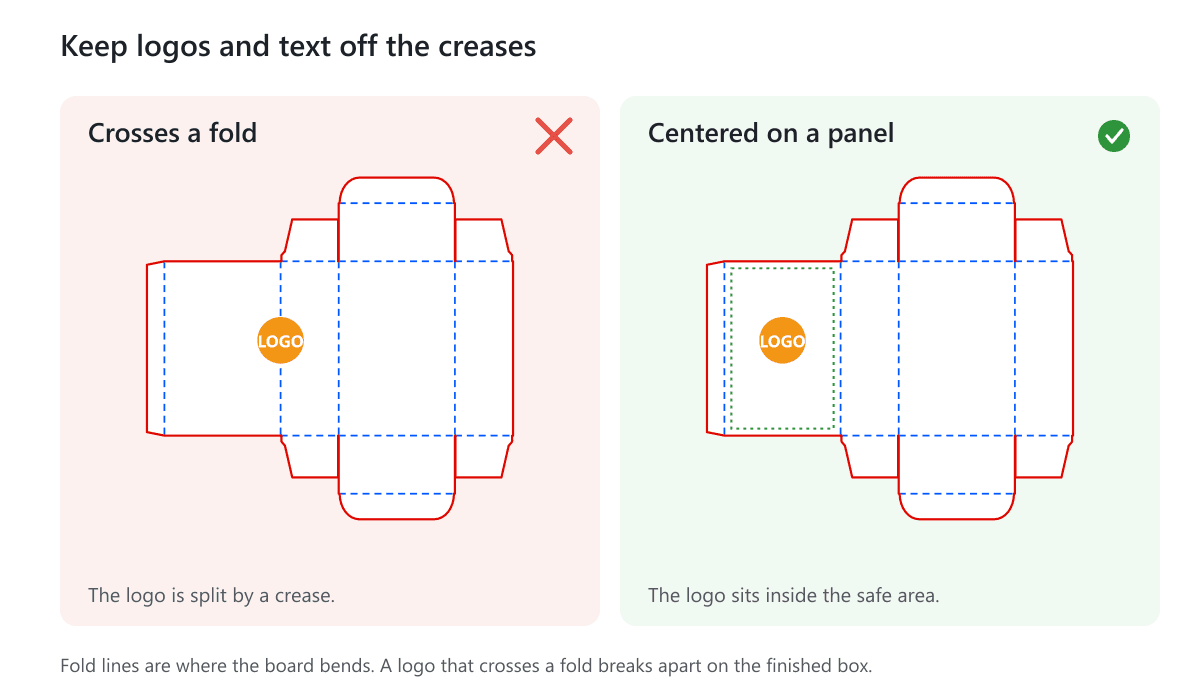
- Center the logo and key text on a panel. Do not let them cross a crease.
- Wrap patterns on purpose. A pattern that continues across a fold can look good, but check where it breaks at the corner.
- Keep small text away from folds. Text close to a crease can crack or disappear.
- Decide about the inside. Tabs and inner panels can be plain or printed. Tell us what you want.
- Ask about glue areas. Glue flaps and tabs need a surface the glue can grip, so ink and coating there can affect the bond. Ask where to leave them clear on your style.
- Rotate on purpose. Text on the top lid and text on the front panel can read in different directions on a folded box. Fold a paper mock-up from the dieline to check.
A paper mock-up from the dieline is the least expensive check. Print the dieline with your artwork on plain paper, cut and fold it. Our guide to folding a cardboard box explains the folds.
Color: CMYK, Pantone and RGB
Screens mix light, and presses mix ink, so colors do not match exactly. Choose a color system on purpose.
| System | What it is | Use it for |
|---|---|---|
| CMYK | Four process inks (cyan, magenta, yellow, black) mixed to make colors | Photos, gradients and complex artwork |
| Pantone | A premixed ink matched to a named color | A brand color that must match closely |
| RGB | The red, green and blue light of a screen | Not for print. Convert to CMYK early |
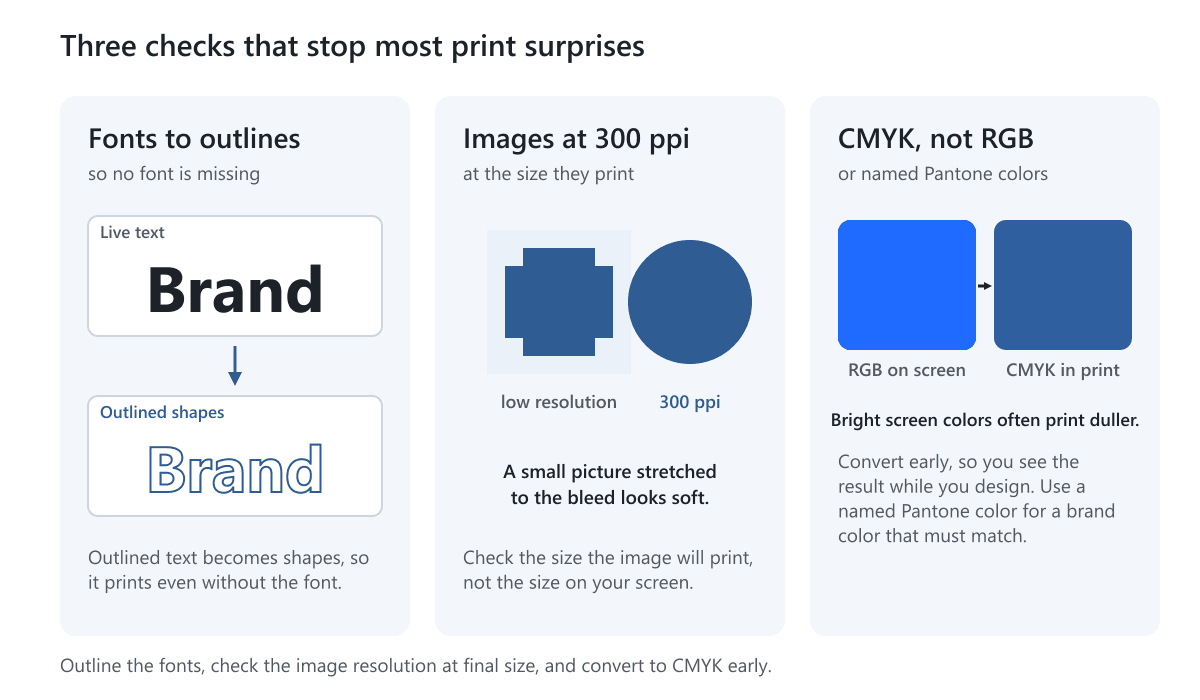
- Convert RGB images and colors to CMYK before you finish the design, so you see the real result. Bright screen blues and greens often print duller.
- Use named Pantone colors for brand colors that must match. Name them clearly in the file.
- Do not mix systems by accident. One stray RGB logo can change color when it is converted.
- Expect board to change color. A color on brown kraft board looks darker and duller than the same color on white board. Check a proof.
- Use a single black for small black text, where possible. Text made from several inks can look fuzzy if the plates shift.
Our help article on color systems in packaging explains the difference in more detail. We print in CMYK or Pantone.
Fonts, Images and Vector Art
Fonts
If a font is missing from the computer that opens your file, the program swaps it for another one, and the layout changes. Prevent it by converting text to outlines, which turns letters into shapes. Keep a copy of the editable file before you outline the text. If you embed fonts instead, say so.
Images
Photos need about 300 pixels per inch at the size they print. A picture that looks sharp on screen can be too small once it is enlarged to fill a panel. Check the size and resolution of every image, including the ones that run into the bleed. Do not stretch a small picture to fill a large area. Use a larger file or a solid color there.
Vector Art and Fine Details
- Use vector logos where you can, because they stay sharp at any size.
- Embed images or package them with the file, so none is missing.
- Avoid very thin lines. Hairlines can fail to print. Check with us if you need lines below about 0.25 pt.
- Check small text. Very small text, especially light text reversed out of a dark color, can fill in or disappear. Test with a proof.
Mark Special Finishes Clearly
We offer foil stamping, embossing or debossing, spot UV and window patching, as well as matte, glossy, satin and soft touch coatings. Each one needs a place in the file so it lands where you expect.
- Put each finish on its own named layer, for example foil, emboss or spot UV.
- Draw the shape in a solid color so it is clear which areas get the finish.
- Check alignment. Foil and spot UV must line up with the printed artwork underneath, so allow for tiny shifts.
- Windows are cut-outs. A window patch is a hole with clear film behind it. Keep text and logos out of it unless you want them partly cut.
- Tell us what each layer means in the notes layer or in your message.
Our guide on varnish vs lamination helps you choose a coating.
Barcodes, QR Codes and Required Text
These are small, and they have to work. Place them on a flat panel, not across a crease. Keep a quiet margin of empty space around a barcode or QR code, use dark ink on a light background, and scan a printed test before you commit. Check the labeling rules for your product category, such as ingredients, warnings and net contents, before you finish the artwork. Leaving this to the end often means the panels are already full.
Export the File
A PDF is the most common format for print-ready artwork. The details depend on the printer and the program, so tell us which format you are using and we will tell you what we need.
- Export at 100 percent, with the bleed included and the dieline hidden or on its own layer, as we agree.
- Keep CMYK and named Pantone colors in the file, with no stray RGB.
- Keep images at their full resolution. Do not compress them heavily.
- Name the file clearly, with the box style and the size, for example tuck-end-2x1.25x4-in-artwork.
- Send the editable file if you can, in case a small fix is needed.
- Ask before adding crop marks or color bars. Printers often add their own, and extra marks can get in the way.
Open the exported file and look at it before you send it. Zoom in on edges, small text and image quality.
The Preflight Checklist
Preflight means checking a file for problems before it goes to print. Copy this list and tick it off.
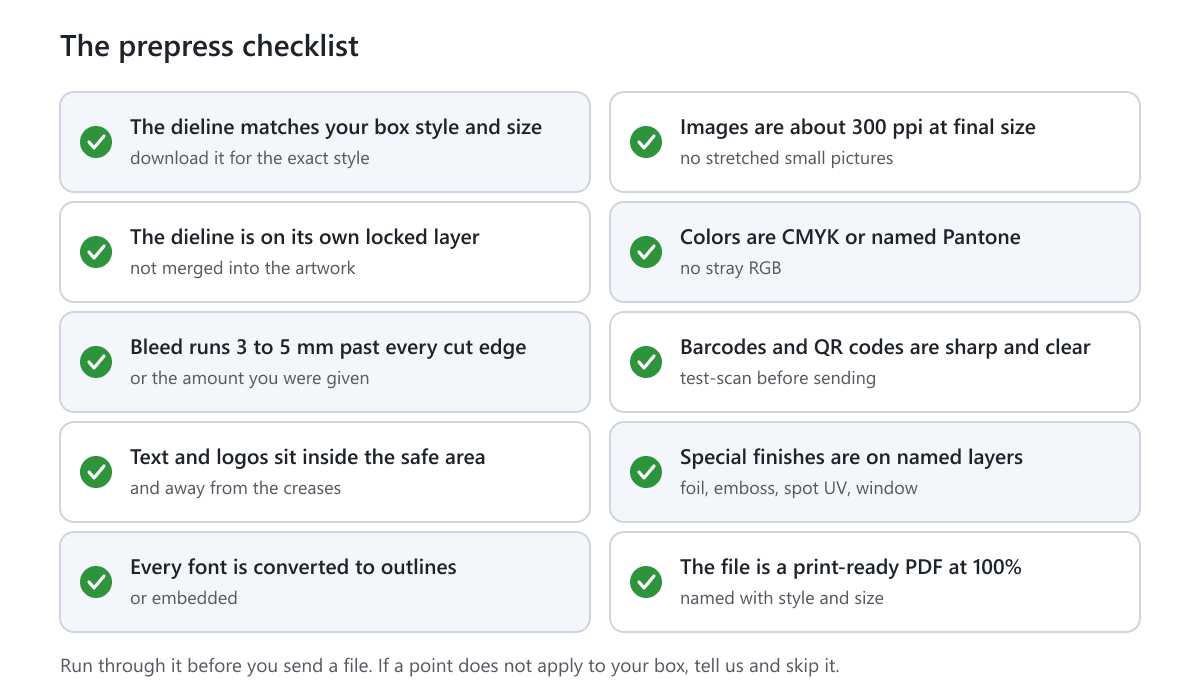
- The dieline matches the box style and size, and is on its own locked layer.
- Bleed runs 3 to 5 mm past every cut edge, or the amount you were given.
- Text and logos sit inside the safe area and away from the creases.
- Every font is converted to outlines, or embedded.
- Images are about 300 ppi at their final size.
- All colors are CMYK or named Pantone.
- Barcodes and QR codes are sharp, clear and tested.
- Special finishes are on named layers, with clear shapes.
- The file is the right format, at 100 percent, with a clear name.
- A paper mock-up shows the folds and the panel order.
What We Confirm Before Printing
You do not have to get every detail right alone. When you send your size and your style, we prepare or check the dieline and confirm the final dieline with you before printing. You approve the dieline together with the artwork before production begins. Production starts once artwork is approved and payment is received, and it takes 5 to 7 working days, with delivery on top. Larger or more complex orders can take longer, and we confirm the date in your quote. A proof or sample can show you the result first. See the samples page and our help article on the packaging dieline.
The free templates are drafts for planning and artwork layout. They do not compensate for board thickness, so the final dieline may differ slightly from the template.
Common Prepress Mistakes
- Starting the artwork before the size and style are final.
- Merging the dieline into the artwork, so it prints or cannot be moved.
- Stopping the background at the cut line, which leaves a white edge.
- Putting a logo across a crease.
- Sending RGB images and expecting the same colors on the box.
- Leaving fonts live, so the file changes when it opens elsewhere.
- Stretching a small image to fill the bleed.
- Reusing artwork from one box size on another without a new dieline.
- Forgetting to mark finishes such as foil, so they land in the wrong place.
Next Step
Download the free dieline template for your style, build your artwork on it, and run the checklist. Send the file with your request and tell us the format and the finishes: get a free quote. We offer free design support and reply within 1 business day.
Frequently Asked Questions
What is a dieline in printing?
A dieline is the flat pattern of a box or other packaging, with cut lines, crease lines and sometimes perforations. Printers use it to place artwork and to make the cutting die. Artwork is built on top of it, and the dieline itself should not print.
Which file format should I send?
A print-ready PDF is the most common choice. Programs and printers differ, so tell us which format you use and we will tell you what we need. Our own dieline downloads are PDF, SVG and DXF, at real size.
How much bleed should I add?
3 mm (1/8 inch) is the most common, and 5 mm is the next size up. Use the number you are given. Our dieline generator can draw a 3 mm or 5 mm bleed line for you. See what is bleed in packaging.
Should the dieline lines print on the box?
No. The cut and crease lines are guides for placing artwork. Keep them on their own layer and hide them in the artwork file, unless we ask for them as a line.
Should I use CMYK or RGB?
Use CMYK, or named Pantone colors for a brand color. RGB is the light of a screen and prints duller. Convert images and colors to CMYK early, so you can see the result while you design.
Do I need to outline my fonts?
Usually yes. Converting text to outlines turns letters into shapes, so the layout cannot change if a font is missing. Keep an editable copy first. If you embed the fonts instead, tell us.
Can you check my file before printing?
Send it with your request and tell us the box style and size. We confirm the final dieline with you before printing, and you approve it together with your artwork before production begins. See our help article on dielines.
Written by the PacksDo Team
We make custom printed packaging, from boxes and mailers to bags, labels and inserts. Questions about this guide? Ask us.