In this article
A paper box template is the flat pattern of a box: an outline with cut lines and fold lines that you cut out and fold into shape. You can draw one by hand with a ruler and a pencil, or download a free one from our dieline generator, type your size, print it at 100 percent, cut, fold along the creases and glue.
This guide is about the pattern itself. It explains what a template (also called a dieline) is, how a flat sheet turns into a box, how to draw a simple one by hand, how to use our free templates in PDF, SVG and DXF, and how to print and check the size. If you want a full walk-through of building a box, see how to make a box. To assemble a flat box you already have, see how to fold a cardboard box.
Key takeaways
- A template is a map of the box. Solid lines show where to cut, and dashed lines show where to fold.
- Every style has the same parts. Panels, a glue flap, lids, tuck tabs and dust flaps, arranged differently for each style.
- Print at 100 percent. Choose actual size, never fit to page, then check one line with a ruler.
- Our templates are real size but do not compensate for board thickness. Use them to plan, test and lay out artwork.
- Test on paper first. A cheap mock-up shows a size error before you cut good board.
What Is a Box Template?
A box template is a drawing of a box laid flat. Think of an unfolded cardboard box. Every flap, side and lid is visible, and each part is joined to its neighbor by a fold.
People use several words for the same thing:
- Template or pattern: the everyday words, often used for craft boxes.
- Dieline: the word used in packaging. A die is the cutting tool that cuts the shape from a sheet, and the dieline is the outline of that tool.
- Flat or net: a term from geometry for the unfolded shape.
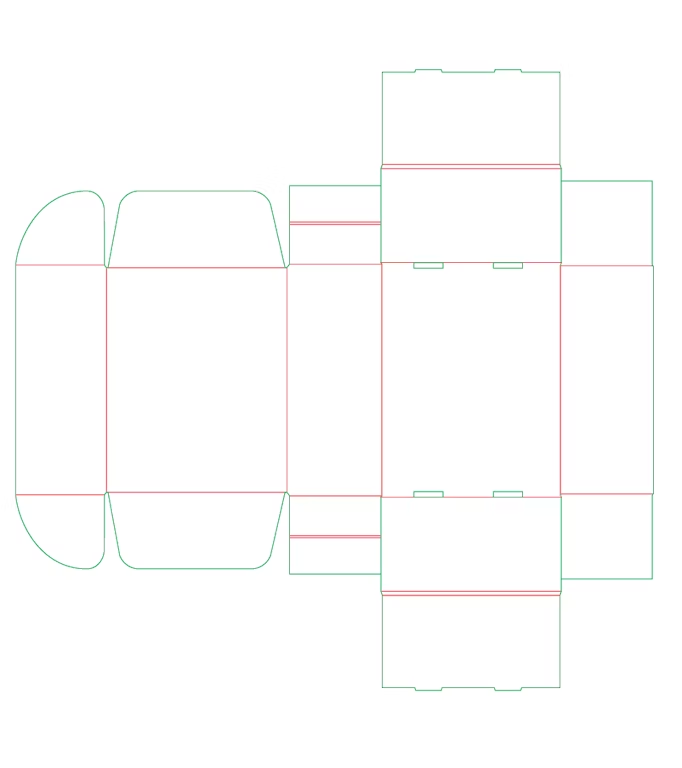
A template uses different lines for different jobs:
- Cut line: where the shape is cut out. In our templates it is red and solid.
- Crease line: where the board folds. It is blue, and dashed in our downloads.
- Perforation: a line of small cuts where a part can tear out or bend more easily. It is green, and only some templates have one.
- Bleed line: how far artwork should run beyond the cut line. It is orange and appears only when you choose a bleed. See what is bleed in packaging.
Colors vary between companies, so always read the legend that comes with a template.
How a Flat Pattern Becomes a Box
Every box starts as a flat sheet that is cut and creased, then folded and glued. Understanding that path makes any template easier to read.
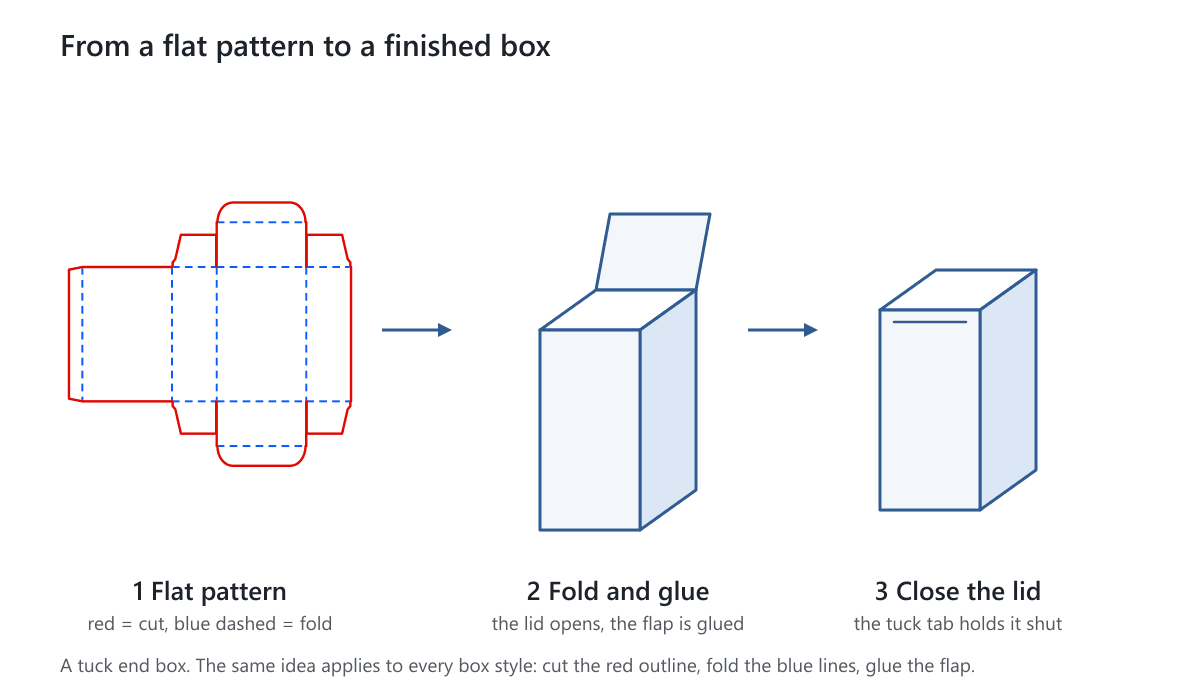
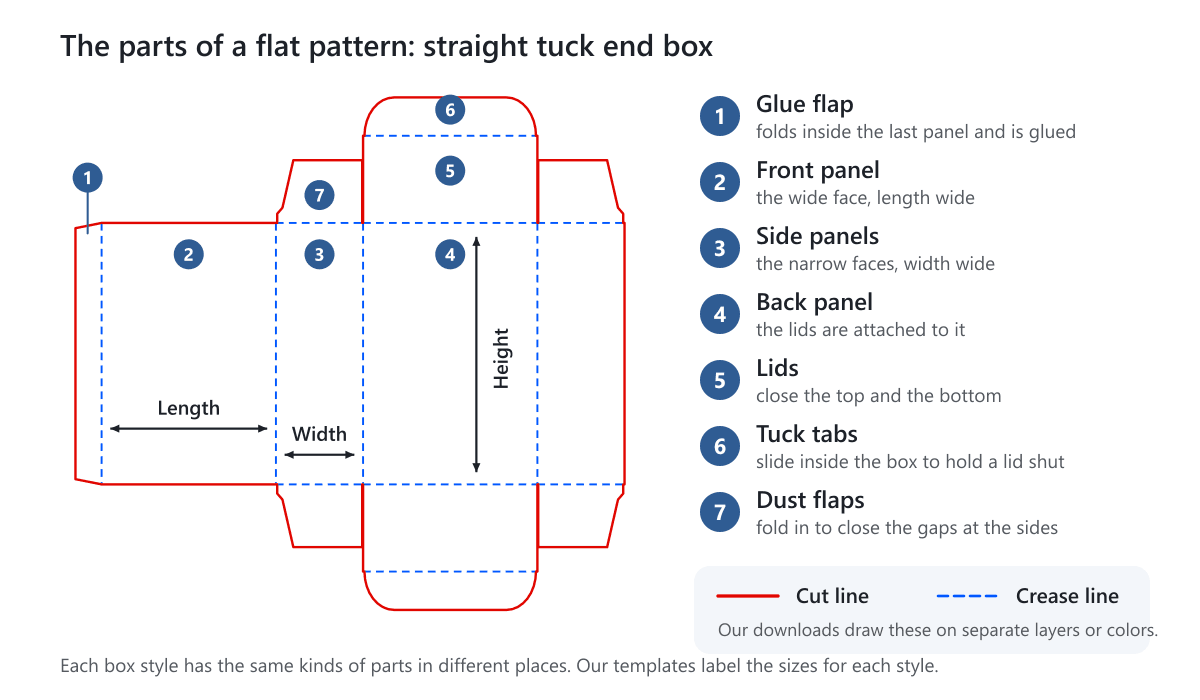
The parts are the same across most styles. The picture below labels them on a straight tuck end box, the classic carton with lids at the top and bottom.
Panels
Panels are the faces of the box. In a four-sided box the front and back are as wide as the length, and the sides are as wide as the width. The height of the panels is the height of the box.
The Glue Flap
One narrow flap on the end of the strip folds inside the first panel and is glued, which turns the strip into a tube. It is usually a little narrower than the other panels and has slanted corners.
Lids, Tuck Tabs and Dust Flaps
A lid closes an end of the box. Its depth matches the width of the side panels so it covers the opening. A tuck tab on the lid slides inside the front panel to hold the lid shut. Dust flaps on the side panels fold in first so the gaps at the sides are closed.
Why Different Styles Look Different
Change which panel carries the lids, add a locking bottom, or turn the lid into a hinge, and you get a different style from the same set of parts. A reverse tuck end box puts the top and bottom lids on opposite panels. A mailer box has a lid, walls and tuck flaps cut from one sheet of corrugated board. A pillow box folds into a tube with curved ends.
Pick a Template for Your Style
Start from the closest style to the box you want. These are common starting points, and each opens a template where you type your own size.
| Box | Template | Good for |
|---|---|---|
| Straight tuck end | Straight tuck end template | Cartons for cosmetics and small products |
| Reverse tuck end | Reverse tuck end template | Upright products and cartons packed on a line |
| Mailer box | Standard mailer template | Shipping and subscription boxes |
| Shipping box | Regular slotted shipping box template | Heavier or larger shipments |
| Pillow box | Pillow box template | Small, light gifts and favors |
| Lid and base | Lid and base template | Gift boxes with a separate lid |
| Tray and sleeve | Tray and sleeve template | Slide-open, drawer-style boxes |
| Gable box | Gable box template | Boxes with a carry handle |
| Hang tag | Hang tag template | Tags and labels |
There are many more, including cards, sleeves, trays, shaped boxes and envelopes. Browse the full list in our free dieline templates.
Draw a Simple Template by Hand
You do not need software to draw a basic pattern. This example is a straight tuck end box that is 2 inches long, 1 1/4 inches wide and 4 inches tall. You need a pencil, a ruler, a set square or the corner of a book, and a sheet of paper or cardstock.
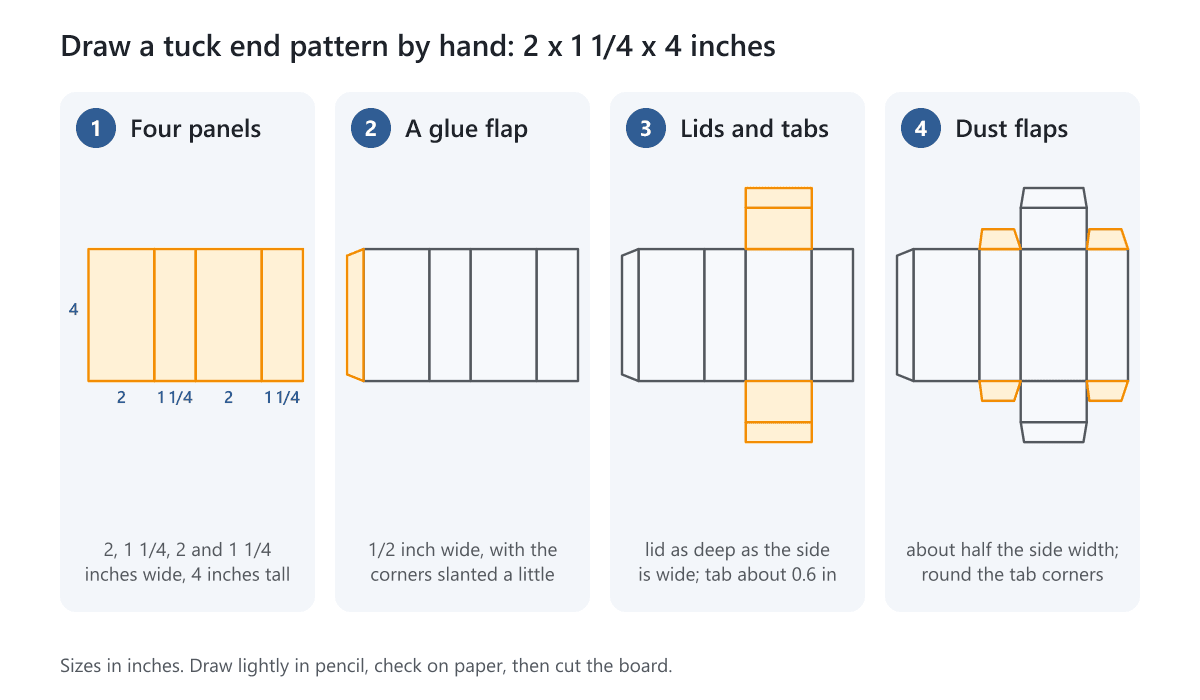
- Step 1: Draw four panels in a row. Make them 2, 1 1/4, 2 and 1 1/4 inches wide, all 4 inches tall. The two wider panels are the front and back, and the narrower ones are the sides.
- Step 2: Add the glue flap. Draw a strip 1/2 inch wide at the end of the first panel, and slant its two corners a little so it slides in easily.
- Step 3: Add the lids. On the third panel, draw a lid at the top and one at the bottom. Each lid is as deep as the side panels are wide, so 1 1/4 inches. Add a tuck tab about 0.6 inch deep on the end of each lid.
- Step 4: Add the dust flaps. On the side panels, draw a flap at the top and bottom that is about half the side width deep, with slanted corners. Round the corners of the tuck tabs so they slide in.
- Step 5: Mark the lines. Draw the cut outline firmly and mark every fold with a dashed line.
- Step 6: Make a paper mock-up. Cut it out, fold along the dashed lines and check the box. Adjust the drawing, not the paper.
The finished sheet is about 7 inches wide and 7.7 inches tall. The rules are: width = glue flap + 2 x length + 2 x width, and height = box height + 2 x (lid depth + tuck tab). Slight changes to the tab and flap sizes are normal. Hand-drawn patterns are fine for a gift or a prototype. For anything with tight tolerances, start from a generated one.
Use Our Free Dieline Templates
Our dieline generator draws the pattern for you at the size you type, and the file is ready to print or open in a design program.
- Choose a style. Pick the closest template from the dieline list. You can search by name.
- Type your size. Each template tells you which sizes it needs, for example length, width and height, and what each one means. Use inches or millimeters.
- Check the pattern. The preview shows the flat pattern. Turn on the measurement lines to see which panel is which.
- Add a bleed if you will print artwork. Choose 3 mm or 5 mm, or no bleed. The bleed line is orange.
- Download. Choose PDF, SVG or DXF. You can tick the box to add size labels to the file.
The files are free and need no sign-up. They are drawn at real size.
Which File Format Should You Use?
| Format | Opens in | Best for | Lines |
|---|---|---|---|
| Any PDF viewer, Illustrator, Acrobat | Printing at home and sending to others | Separate colors | |
| SVG | Illustrator, Inkscape, Figma, Affinity | Laying out artwork on the pattern | Separate layers |
| DXF | CAD software and some cutting machines | Cutting machines and technical drawings | Separate layers |
Check what your own software or cutting machine accepts before choosing.
What the Templates Do Not Do
The templates do not compensate for board thickness. Board takes room at every fold, so a box cut from thick board can end up slightly different from the numbers you typed. Use the templates to plan, to test with paper and to lay out artwork. For an order, we confirm the final dieline with you before printing. See our help article on the packaging dieline.
Print and Cut at Home
Printing a template correctly takes one setting. The picture shows it.
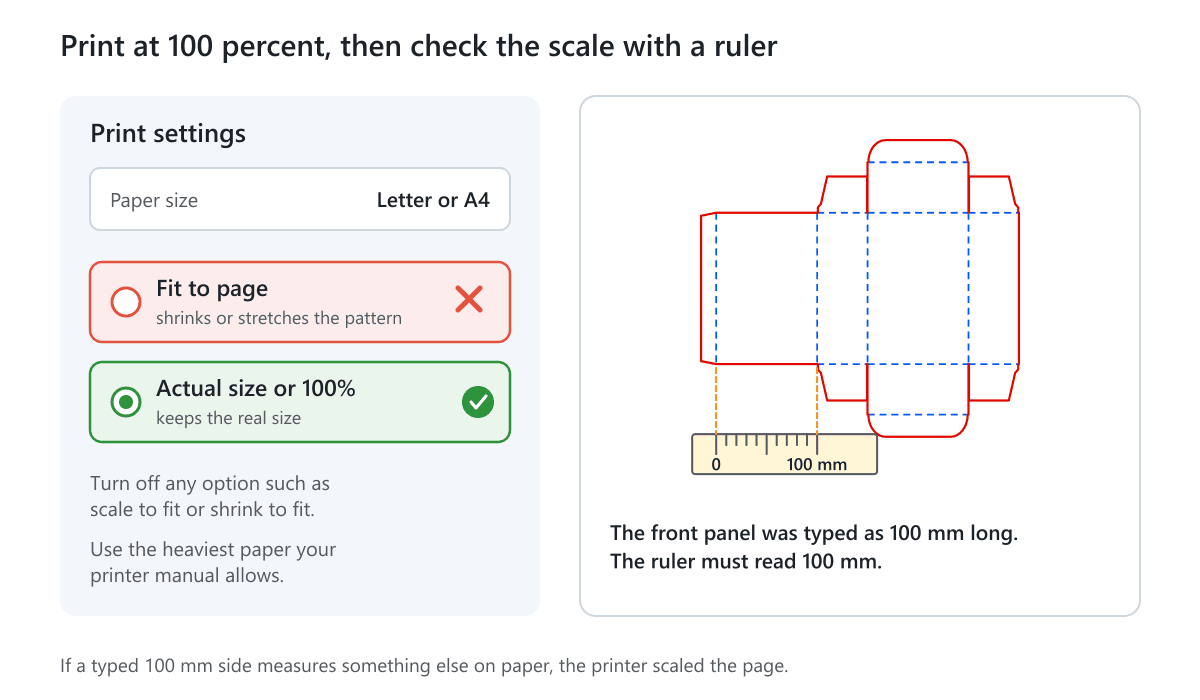
- Print at 100 percent. Choose actual size. Any option called fit to page, shrink to fit or scale will change the size.
- Check the scale. Measure one printed side with a ruler. If the front panel was typed as 100 mm, it must measure 100 mm.
- Test on plain paper first. A cheap print shows if the pattern folds the way you expect.
- Use board your printer can handle. Check your printer manual for the heaviest paper it accepts. Many home printers cannot take thick cardboard.
- If the pattern is larger than your paper, a copy shop can print it at full size on large paper. Do not shrink it.
- Cut and score. Cut the red lines with a craft knife and a steel ruler. Score the blue lines with a bone folder before you fold. Our guide to making a box covers cutting and scoring in more detail.
- Glue the flap. A thin line of glue inside the first panel, pressed and held until it grips.
Check the Scale and the Fit
Before you cut good board or send a file anywhere, run these checks.
- Measure two sides on the printed sheet and compare them with the size you typed.
- Fold a paper mock-up and check that the lid closes and the tuck tab goes in.
- Put the product in. It should slide in without force and not rattle.
- Check the lid. On a two-piece box the lid must be a little larger than the base. See our guide to measuring the dimensions of a box.
- Try your real board. Thick board needs extra room at the folds, so cut a test piece from the board you plan to use.
Our guide to choosing the right box for your product helps you pick a style and a material before you start.
Using a Template for a Printed Order
A template is also the starting point for a printed, professionally made box. Download the one for your style, lay your artwork on it, and keep the dieline on its own layer. Run backgrounds past the cut line to the bleed line, and keep text and logos away from the edges and folds. Our guide to preparing dielines for prepress and printing covers the file rules.
If you do not want to prepare the dieline yourself, send us your size and the style, and we will prepare it. We confirm the final dieline with you before printing, and you approve it together with the artwork before production begins. For a wider look at the process, read how to make a custom box.
Common Template Mistakes
- Printing with fit to page switched on, so the box comes out the wrong size.
- Mixing up length and width, so the lid does not fit.
- Cutting the crease lines instead of scoring them.
- Forgetting thick board, so the lid is too tight.
- Making the glue flap too wide or too narrow.
- Skipping the paper mock-up.
- Using an inside size where the template expects the size of the finished box, or the reverse. Read the hint on each size field.
- Putting artwork on a template that has no bleed.
Next Step
Open the free dieline templates, choose your style, and print a test on plain paper. When the size is right, send it to us with your quantity: get a free quote. We offer free design support and reply within 1 business day.
Frequently Asked Questions
What is the difference between a template and a dieline?
They mean almost the same thing. A template is the flat pattern of a box, and a dieline is the packaging word for it. The dieline is the outline of the cutting die, with cut lines and fold lines. Craft projects usually say template, and printers say dieline.
Are your dieline templates really free?
Yes. Our dieline generator is free to use and needs no sign-up. You type the size, check the pattern and download a PDF, SVG or DXF file at real size.
Which file should I download, PDF, SVG or DXF?
Use PDF to print or share, SVG to lay out artwork in a design program, and DXF for CAD software or a cutting machine. Check what your own software accepts. The lines are on separate layers in SVG and DXF files, and in separate colors in a PDF.
Why does my printed template have the wrong size?
The printer scaled the page. Print again with actual size or 100 percent selected and turn off fit to page or shrink to fit. Then measure one printed side to confirm it matches the size you typed.
Can I use a template with thick cardboard?
Yes, but allow for thickness. Our templates do not compensate for board thickness, so thick board takes space at each fold and the finished box can differ from the typed size. Test with a piece of your board first.
Can I print my own artwork on a template?
Yes. Open the SVG or PDF in a design program, put your artwork under the dieline and extend backgrounds to the bleed line. See what is bleed in packaging and our guide to preparing dielines for printing.
Which template should I use for a shipping box?
Start with the regular slotted shipping box template for a standard carton, or a mailer box template for a one-piece box with a lid. Our shipping boxes and mailer boxes pages show the styles we make.
Written by the PacksDo Team
We make custom printed packaging, from boxes and mailers to bags, labels and inserts. Questions about this guide? Ask us.